Photographers can use Phoaly as the folder-based step between a shoot and an editor: copy the card into a client folder, cull with keep, maybe, and reject, run one organize plan with a full preview, then hand the selects to the editor. No import and no catalog to maintain.
This page covers the workflow, where it fits, and the parts of a professional pipeline it does not replace.
The problem with a second catalog
A catalog is a commitment. Once every shoot is imported, the catalog becomes the source of truth, and the folder tree becomes a detail the app maintains for you. That is fine if the catalog is the center of your workflow.
For photographers who already deliver by client folder, a second catalog adds work:
- Every ingest is also an import.
- Every rename has to happen in two places.
- Every archive move risks breaking the catalog's links.
- Every app change becomes a migration.
Phoaly takes the other side: the client folder is the source of truth, and the index is disposable.
A shoot workflow
1. Ingest into a client folder
Copy the card into a folder that matches your structure, for example:
2025/
  2025-05/
    2025-05-12 Client Name/
      RAW/
      Selects/
      Exports/
Do not import into a library. Copy the files, verify the count, then format the card.
2. Cull in the folder
Add the shoot folder to Phoaly and cull it:
- Keep, maybe, and reject each have a key.
- Marking advances to the next photo.
- Progress counts the whole shoot.
- Deletes go to the system Trash and can be undone.
Two passes are usually enough: rejects first, maybes second. See the culling guide for the detailed rhythm.
3. Organize with a preview
If the shoot needs renaming or moving, use one organize plan:
- The target path for every file is stated before anything runs.
- Name conflicts get a suffix instead of overwriting.
- Copies are verified with sha256.
- The session is written to a journal and can be undone.
Run the plan on the shoot folder, not on the whole archive.
4. Deliver the selects
Export or hand off the selects from the Selects/ folder. Keep exports in
Exports/ so the original tree stays clean and the exports can be deleted
later.
5. Archive
Move the client folder into the year structure once the delivery is accepted. Because the folder tree is the archive, there is no catalog to relink.
Where Phoaly fits
Phoaly is useful in the parts of the pipeline that involve looking at many frames and moving files:
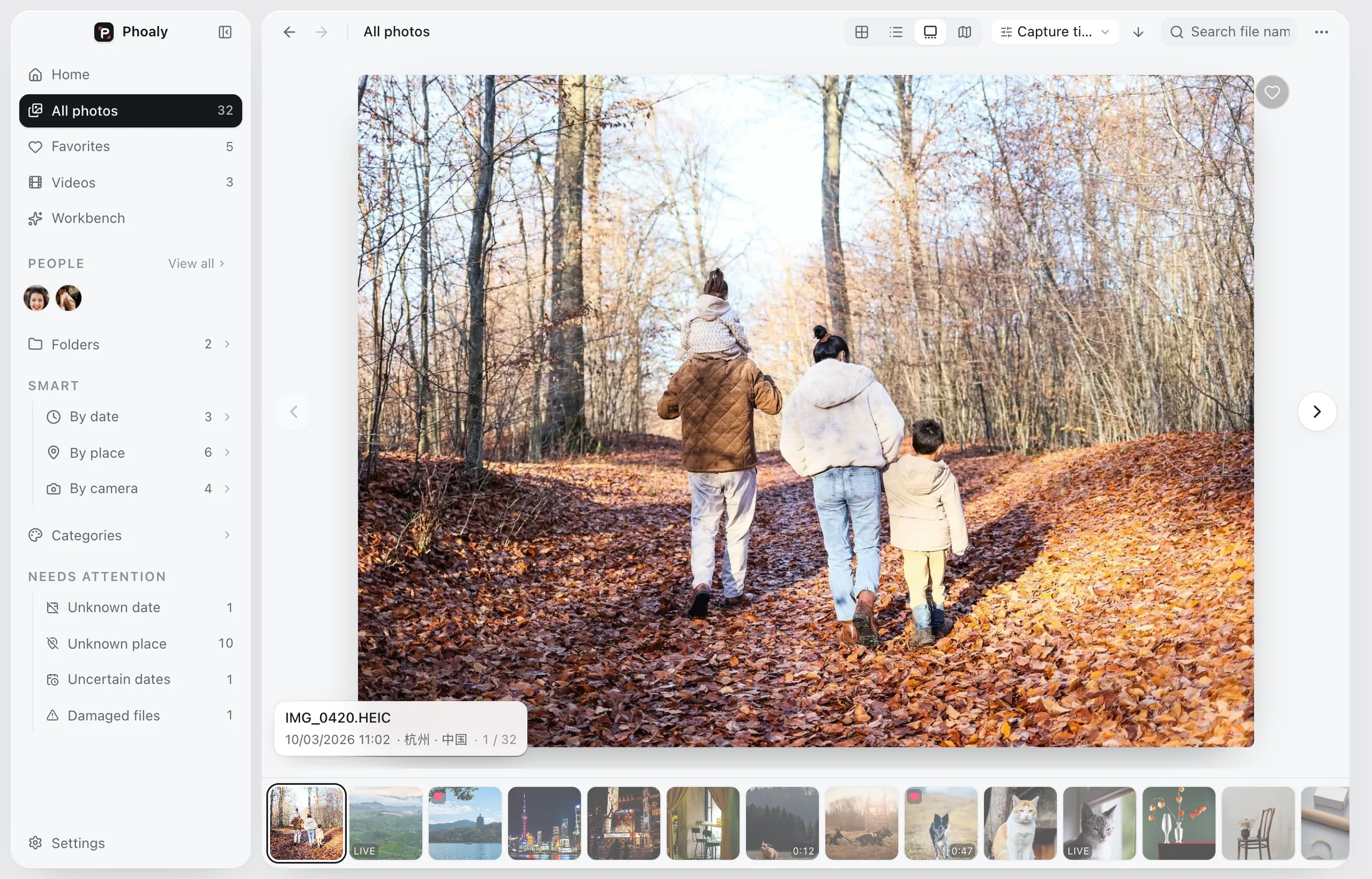
- Browsing a shoot in grid, list, gallery, and map.
- Culling with three states and an undoable delete.
- Searching by what is in the picture, not the file name.
- Grouping people and scenes without tagging every photo.
- Renaming, moving, and deduping with a preview and a journal.
What it does not do
Phoaly is not a full digital asset manager or a RAW editor:
- No RAW development, color grading, or retouching.
- No keyword hierarchy or virtual collections that live outside the folder tree.
- No client gallery hosting or delivery portal.
- No cloud sync or multi-user catalog.
If your workflow depends on a keyword-rich catalog or client proofing, keep the tool that provides it. Phoaly can still handle the folder-side cull and organize.
A client folder template
A simple template that works with the structure in this guide:
YYYY-MM-DD Client Name/
  RAW/          camera originals
  Selects/      culled images for delivery
  Exports/      JPEGs, web sizes, or print files
  Notes.txt     brief, shot list, delivery notes
The template is small on purpose. Every folder has one job, and the archive can be read without the app.
A delivery checklist
- Back up the card and the shoot folder.
- Verify the file count after ingest.
- Cull in two passes.
- Run one organize plan and check the preview.
- Deliver the selects.
- Keep the journal until the backup is current.
- Archive the client folder.
Frequently asked questions
Does Phoaly replace Lightroom?
No. It replaces the import, cull, and folder-organization step. Keep Lightroom or another editor for RAW development and color.
Does it keep a catalog of my shoots?
It keeps a disposable index of the folders you add. The index can be rebuilt. There is no separate catalog to maintain or migrate.
Can I use it with client folders on an external drive?
Yes. Keep the mount point stable so a disconnected drive recovers in place. See the organizing guide for cross-volume moves.
Does it work for video?
Video uses system decoding for playback and covers, including Live Photo stills and motion clips. It is not a video editor.